

ChatBot Configuration
By configuring a ChatBot, you have the option of having artificial intelligence support your agents in creating texts for ticket creation and email processing.
As of 2.2025 you can use ChatGPT/OpenAI and DeepSeek.
ChatGPT
To access ChatGPT you need an account with OpenAI and a valid API key, see here
Open the "System Parameters" list and select "New Parameter" to save a new system parameter.
Enter “ChatGPT” as the name. Please pay attention to upper and lower case letters.
Enter the required values to access the ChatGPT API. Use the following text as a template and adapt it to your requirements.
Please insert your own API key into the apiKey line:
apiKey=************************************************
model=gpt-4o-mini
store=true
creation_prefix=
creation_postfix=
reply_prefix=
reply_postfix=
neutral_prefix=
neutral_postfix=
creation_system_command=Formatiere die Antwort als HTML-Fragment.
reply_system_command=Formatiere die Antwort als HTML-Fragment. Sei höflich und formell.
neutral_system_command=Formatiere die Antwort als HTML-Fragment.
In addition to the user request, ChatGPT always receives a system command with instructions on how the ChatBot should respond.
todo4teams can use different commands depending on the context:
- when creating new tickets: creation_system_command
- when replying to emails: reply_system_command
- in all other contexts: neutral_system_command
The system commands should always contain the instruction "Format the response as an HTML fragment." included so that the AI's answer can be adopted in the correct format.
In the reply_system_command above, it is also required that the AI uses the appropriate tone towards a customer.
You can also have a short command precede and follow the user request. To do this, use the parameters reply_prefix, creation_prefix, etc., depending on the context.
Example ChatGPT configuration:
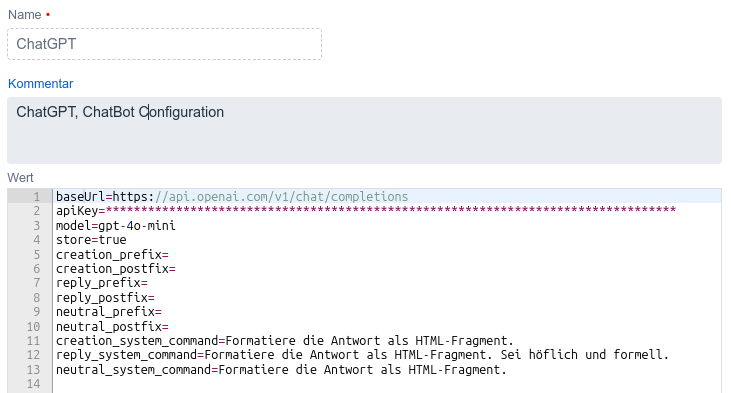
Then save the settings. The ChatBot function can then be used immediately.
DeepSeek
Open the "System Parameters" list and select "New Parameter" to save a new system parameter.
Enter “DeepSeek” as the name. Please pay attention to upper and lower case letters.
The configuration of DeepSeek is very similar to that for OpenAI (see above).
Use the following template for configuration:
apiKey=************************************************
model=deepseek-chat
creation_prefix=
creation_postfix=
reply_prefix=
reply_postfix=
neutral_prefix=
neutral_postfix=
creation_system_command=Formatiere die Antwort als HTML-Fragment.
reply_system_command=Formatiere die Antwort als HTML-Fragment. Sei höflich und formell.
neutral_system_command=Formatiere die Antwort als HTML-Fragment.
Here, too, you need to register as an API user with DeepSeek and an API key.
In addition to the user request, DeepSeek always receives a system command with instructions on how the ChatBot should respond.
todo4teams can use different commands depending on the context:
- when creating new tickets: creation_system_command
- when replying to emails: reply_system_command
- in all other contexts: neutral_system_command
The system commands should always contain the instruction "Format the response as an HTML fragment." included so that the AI's answer can be adopted in the correct format.
In the reply_system_command above, it is also required that the AI uses the appropriate tone towards a customer.
You can also have a short command precede and follow the user request. To do this, use the parameters reply_prefix, creation_prefix, etc., depending on the context.
Empolis Buddy
The Empolis chatbot "Buddy" uses RAG ("Retrieval-Augmented Generation") to generate responses, meaning it is designed to be enriched with company-specific knowledge.
Example of an Empolis Buddy configuration:
tokenUrl=https://????.empolisservices.com/oauth2/token
docBaseUrl=https://????.empolisservices.com/service-express/portal/project1_p/document/
username=????
password=????
client_id=????
client_secret=????
creation_prefix=
creation_postfix=
reply_prefix=
reply_postfix=
neutral_prefix=
neutral_postfix=
creation_system_command=You are a call center agent and support end customers.
reply_system_command=You are a call center agent and support end customers. Be polite and formal.
neutral_system_command=You are a call center agent and support end customers.
taskContextPrompt=The question refers to the following customer request: Subject: {subject} \
Email Sender: {from} \
Addressed Team: {toteam} \
Date of Request: {startdate} \
Scheduled Enddate: {scheduledenddate} \
Assistant: {username} \
Request: {description}
Create an API user in Empolis and configure the username, password, etc. settings to match your Empolis instance.
Also, configure the docBaseUrl setting to display the Empolis documents used for the response.
Basic Facts
To provide the AI bot with some facts about your company, your products, etc., save a system parameter called ChatBaseFacts:
Enter facts in plain text that the AI agent should use in its responses. The amount of text is unlimited – but keep in mind that the chatbot's processing time will increase significantly if you pass more than a few screens here.
Example:
Company: Margarete Steiff GmbH / Steiff Beteiligungsgesellschaft mbH
Founded: 1880 (Official Founding Date)
Headquarters: Giengen an der Brenz, Baden-Württemberg, Germany
Industry: Toy manufacturer (high-quality teddy bears and plush toys, including children's fashion)
Trademark: Button in Ear
Number of employees: Approx. 1,300 - 1,700 (depending on source and reference year)
Revenue: €96.7 million (Steiff Beteiligungsgesellschaft mbH, 2022) / €112 million (Steiff Group, other source)
Owner: Traditionally family-owned
Steiff is the global market leader in the high-quality teddy bears and plush toy segment.
Analysis of Images and Attached Documents
Optionally—and depending on the selected AI model—you can include received image and document attachments in the analysis:
| Analysis | ChatGPT | DeepSeek | IONOS AI Model Hub | Empolis Buddy |
| Ticket Details | ✅ | ✅ | ✅ | ✅ |
| Attached Image Files | ✅ PNG, JPG, GIF, WEBP | - | - | - |
| Attached Documents | ✅ PDF, DOCX, ODT, DOC | ✅ | ✅ | ✅ |
Analysis of Image Files
By setting image_analysis=true, you enable the transmission of attached image files to the AI. This allows for the automatic answering of customer questions that relate to image content.
Analysis of Attached Documents
To enable the analysis of text within attached PDF, DOCX, or ODT files, add the following lines to your ChatBot configuration:
read_attachments=true
max_chars_per_attachment=2000
The max_chars_per_attachment setting determines the maximum number of text characters included in the analysis per attachment. 2,000 characters correspond to approximately one full A4 page of text.
Please note that setting a high value here will increase the number of tokens required by your AI, which may subsequently impact your costs!
One-Click Prompt
In the chatbot dialog, you can request an answer without typing a question yourself:
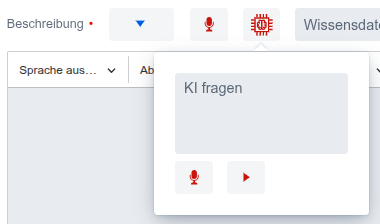
Simply click on  .
.
The prompt that is then sent to the chat agent can be configured in the system setting AUTO_ANSWER_PROMPT, e.g., "Answer the customer's request."
Customize this prompt as needed.