KI in Formularen verwenden
Just as you use AI functions in email scripts, for example, you can also use them within the interactive elements of todo4teams forms.
Below, we demonstrate how to retrieve AI-generated background information based on a form value.
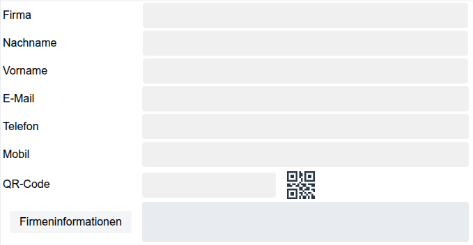
When clicked, the "Company Information" button in the form shown below is intended to automatically provide a brief summary about the company specified in the "Company" field:
To do this, open the form in the administration area, select the button, and open its settings:
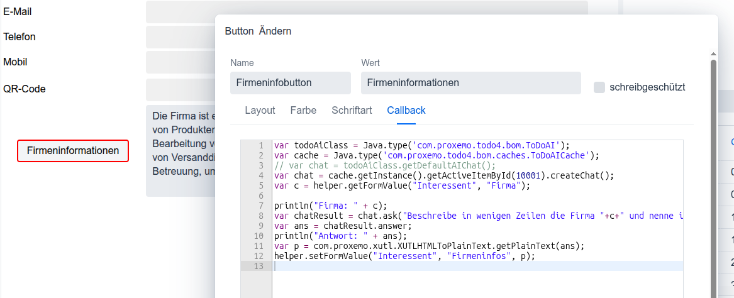
The code in the "Callback" section executes when the button is clicked.
It is designed to perform the following actions:
- Access a ChatBot API.
- Load the current value from the "Company" text field into a variable.
- Send a predefined question to the ChatBot, inserting the variable's value into the question.
- Receive the ChatBot's response.
- Strip text formatting from the response (since the "Company Information" field expects plain text).
- Insert the resulting value into the text field.
Below is the corresponding script code, including comments:
var todoAiClass = Java.type('com.proxemo.todo4.bom.ToDoAI');
var chat = todoAiClass.getDefaultAIChat();
// Alternatively, use a specific AI:
// var chat = cache.getInstance().getActiveItemById(10001).createChat(); // Retrieve the value from the "Firma" form field in the "Interessent" form:
var c = helper.getFormValue("Interessent", "Firma");
// Construct the query for the chatbot using the retrieved value c:
var chatResult = chat.ask("Describe the company "+c+" in a few lines and state its field of activity.");
// Assign the result:
var ans = chatResult.answer;
// Remove text formatting:
var p = com.proxemo.xutl.XUTLHTMLToPlainText.getPlainText(ans);
// Display the result in the "Firmeninfos" form field:
helper.setFormValue("Interessent", "Firmeninfos", p);
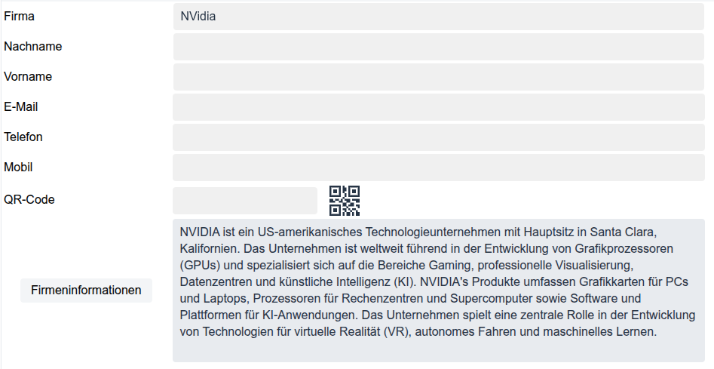
Result:
In this example, the following was displayed one second after entering the company name "NVidia":